
A homepage score of 95 does not mean your WooCommerce store is fast. Your category template can still make shoppers wait, a variable product can lock the browser during interaction, and checkout can stall on uncached PHP, database, shipping, or payment requests.
I treat WooCommerce speed optimization as a revenue-path problem, not a plugin-settings problem. The goal is to make browsing, filtering, adding to cart, and paying feel faster without serving stale prices, losing analytics events, or breaking customer sessions.
This is the order I use to diagnose and fix a slow store.
What Should You Fix First on a Slow WooCommerce Store?
Start by identifying whether the delay sits in the server, database, network, or browser. Test representative category, product, cart, and checkout pages before changing anything. Then fix the earliest major bottleneck in the request path, verify the buying journey, and move to the next layer only when the previous change is stable.
Most speed advice starts with a list: install caching, compress images, use a CDN, minify files. Those can all help. They can also waste a day if your checkout waits on a payment API or the server spends two seconds generating HTML.
| What You See | Likely Layer | First Evidence to Check |
| Slow HTML response on every template | Hosting, PHP, database, or uncached work | WebPageTest TTFB, host APM, slow-query log |
| Slow main product image | LCP discovery, dimensions, format, or delivery | PageSpeed Insights LCP element and waterfall |
| Filters or variations freeze | Main-thread JavaScript or AJAX work | Chrome Performance panel and Network panel |
| Public pages fast, checkout slow | Uncached PHP, database, gateways, tax, or shipping | APM trace and checkout request waterfall |
| Layout jumps while loading | Missing dimensions, fonts, notices, or injected UI | PageSpeed Insights CLS diagnostics |
| Admin or orders slow | Queries, Action Scheduler, plugins, or order storage | Query Monitor, Scheduled Actions, HPOS status |
In my technical SEO work, I turn audits into developer-ready priorities rather than leaving teams with a flat list of warnings. Speed work needs the same discipline: evidence, impact, implementation risk, and a measurable acceptance check for every ticket.
Free Quiz with Fixes: Check Whether Your Woocommerce Settings are Optimized for Speed
How Do You Build a WooCommerce Speed Baseline?
Build the baseline across the full shopping path, not only the homepage. Test at least one category, a simple product, a variable product, internal search, cart, checkout, and My Account. Record mobile and desktop results, customer state, cache state, test location, and the median of repeated runs so later comparisons mean something.
Use Google PageSpeed Insights for lab diagnostics and available Chrome User Experience Report field data. Use WebPageTest for request waterfalls, Chrome DevTools for network and main-thread work, and Query Monitor or application performance monitoring for slow PHP functions, database queries, and remote calls.
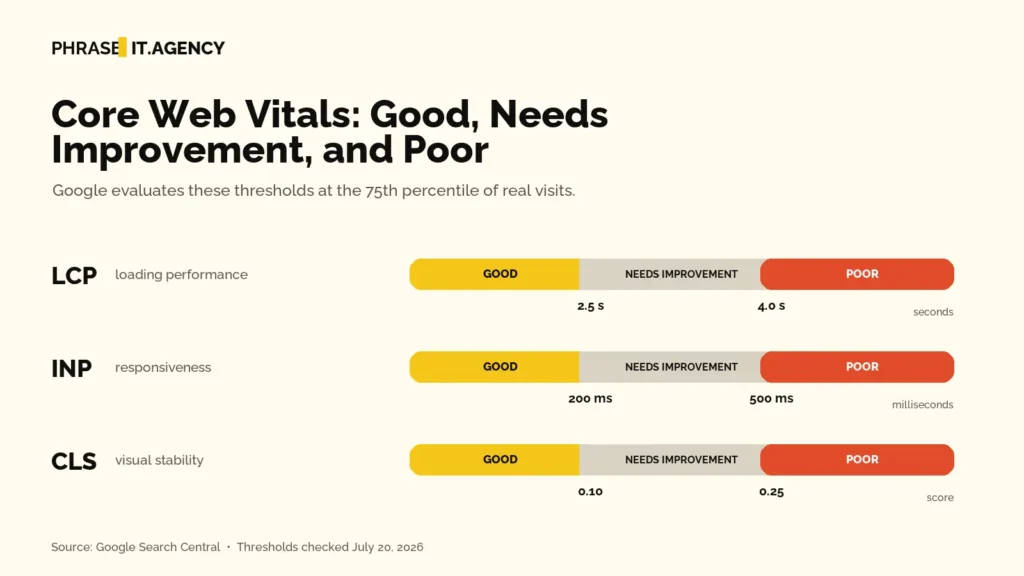
Google defines good Core Web Vitals as LCP within 2.5 seconds, INP under 200 milliseconds, and CLS under 0.1, evaluated at the 75th percentile of real visits. A single Lighthouse run is a lab sample. It does not prove that real shoppers pass those thresholds.
- Create staging and confirm that the production backup can actually be restored.
- Choose representative URLs for each important template and customer state.
- Run at least three comparable tests per URL and record the median.
- Save the LCP element, waterfall, long tasks, cache headers, and backend trace.
- Write one hypothesis for each failure before changing a setting.
Why Is the Server Usually the First Layer to Check?
Check hosting, PHP, database work, and Time to First Byte before polishing frontend assets because WooCommerce depends on dynamic requests. Cart, checkout, accounts, search, filters, and API calls cannot all hide behind full-page cache. If the server responds slowly, minifying another stylesheet will not fix the part shoppers are waiting for.
Ask the host for the current supported PHP version, PHP worker limits, CPU and memory allocation, OPcache status, persistent object-cache support, data-center location, slow-query visibility, and behavior during traffic spikes. A “managed WooCommerce” label does not answer those questions.
Compare a cacheable product request with an uncached cart or checkout request. If public pages are fast and dynamic pages are not, focus on PHP workers, database queries, remote services, session work, and the extensions executing during those requests.
Persistent object caching with Redis or Memcached can reduce repeated database work, especially on dynamic requests. But installing a WordPress plugin does not create a Redis service. Confirm that the server service exists, WordPress connects to it, and the object-cache drop-in stays active; then measure before and after.
How Should WooCommerce Caching Be Configured?
Cache public catalog and content pages when they are not personalized, but keep cart, checkout, My Account, order endpoints, and customer-specific sessions out of full-page cache. WooCommerce-aware tools often provide default exclusions. You still need to inspect cache headers, test cookies and custom endpoints, and complete purchases after every caching change.
WooCommerce’s current caching guidance specifically calls out Cart, Checkout, and My Account as pages that should not be cached. Product and category pages can usually use page cache, but location-based pricing, membership rules, stock behavior, or custom personalization may change that decision.
| Page Type | Expected Starting State | Critical Check |
| Homepage and content | Page-cached | Fresh promotions, correct navigation, no stale personalization |
| Category and product | Page-cached unless personalized | Prices, stock, variations, filters, add to cart |
| Internal search | Dynamic or selectively cached | Fresh results and acceptable response time |
| Cart and checkout | Not full-page cached | Correct items, totals, shipping, tax, gateways |
| My Account and order endpoints | Not full-page cached | Correct customer data and authorization |
Choose one primary page-cache and asset-optimization layer. WP Rocket and FlyingPress can fit many stacks; LiteSpeed Cache’s server-level advantage depends on LiteSpeed Web Server or OpenLiteSpeed. The right choice follows the host, existing cache layers, required features, and the bottleneck you measured—not a universal “best settings” screenshot.
Map every layer before adding Cloudflare or another CDN. Static assets are straightforward candidates. Edge-cached HTML needs bypass rules for WooCommerce routes, logged-in customers, and session cookies, plus a purge process for product, stock, and price changes.
How Do You Fix Product Images and LCP?
Fix the resource that PageSpeed Insights or DevTools identifies as the Largest Contentful Paint element. Make it discoverable in the initial HTML, serve a correctly sized WebP or AVIF when supported, and avoid lazy-loading it. Use preload or fetchpriority only when the resource is truly critical; prioritize one asset instead of making everything high priority.
LCP can be delayed by server response time, late resource discovery, slow download, or render delay. That distinction matters. Compression cannot fix an image inserted late by JavaScript, and preloading cannot repair a slow server or a blocked main thread.
- Generate responsive `srcset` candidates for product cards, thumbnails, and main product images.
- Add explicit width and height attributes so the browser can reserve space and protect CLS.
- Lazy-load below-the-fold product cards, review media, iframes, and video players.
- Use an image facade for above-the-fold video and load the player after interaction.
- Check mobile and desktop separately because they may use different layouts and LCP elements.
Do not enforce one file-size limit across every product image. The useful target depends on rendered dimensions, visual detail, format, quality, and the rest of the page budget. Compare visual quality and transfer size, then watch the real LCP result.
If your store is slow and you need a prioritized plan rather than another generic checklist, Phrase It can audit the templates, server, Core Web Vitals, and ecommerce path that matter most.
Book a strategy callHow Do You Improve WooCommerce INP Without Breaking Features?
Improve Interaction to Next Paint by recording real actions—opening filters, choosing variations, updating quantity, adding to cart, or validating checkout—and finding the long JavaScript tasks or slow requests behind them. Remove or scope unnecessary code first. Defer or delay scripts only after checking dependencies, browser errors, analytics events, and completed orders.
A plugin count is not a performance diagnosis. One search, filter, pricing, page-builder, chat, consent, or tracking plugin can add more work than many small extensions. Measure its assets, database queries, remote calls, and scheduled actions before replacing it.
- Record a slow interaction in Chrome DevTools Performance.
- Identify the long task, event handler, layout work, or AJAX request causing the delay.
- Load the asset only on templates that need it, simplify the feature, or replace the expensive implementation.
- Defer non-critical scripts; delay marketing or social scripts only when consent and measurement requirements allow it.
- Retest variations, filters, mini-cart, coupons, shipping, checkout validation, payment, and analytics.
Unused CSS removal has the same risk. WooCommerce styles may appear only after a variation changes, a validation error fires, a modal opens, or a payment field loads. Enable the optimization on staging, rebuild generated CSS, and exercise every interactive state before production.
How Should You Handle Fonts and Third-Party Scripts?
Treat fonts and third-party scripts as budget decisions. Load only the font files, weights, tags, widgets, and embeds that support a real design, legal, analytics, or revenue requirement. Host fonts locally when licensing permits, delay non-essential tools when appropriate, and verify consent plus ecommerce tracking before accepting any performance gain.
Start with an inventory from Google Tag Manager, the page source, and the Network panel. Assign an owner and purpose to every analytics tag, advertising pixel, heatmap, chat widget, review embed, social script, video player, and consent dependency. Duplicate tags and abandoned experiments are easier to remove when someone has to defend the business purpose.
Fonts can delay rendering and cause layout shifts when the fallback and final typefaces use different metrics. Reduce unused families, weights, and styles. Preload only the font files needed for above-the-fold text, use `font-display` deliberately, and check whether the theme or page builder is loading the same family from more than one source.
Do not improve a lab score by quietly deleting measurement. After changing tags or consent behavior, use the relevant debug tools and a test order to confirm page views, product views, add-to-cart, begin-checkout, purchase value, currency, and consent states. A faster store with a broken revenue report creates a different business problem.
When Is Better WooCommerce Hosting the Right Fix?
Upgrade hosting when controlled evidence shows that CPU, memory, PHP workers, storage, database throughput, or network location limits the store under realistic load. Do not move solely because a score is low. First rule out slow queries, blocking remote APIs, uncached custom code, and front-end work that will follow you to the new server.
Ask a prospective host to explain resource limits, not just plan names. You need to know how many concurrent uncached PHP requests the plan can process, whether workers queue during checkout spikes, whether Redis and OPcache are supported, how database performance is monitored, where backups live, and whether staging behaves like production.
A useful comparison repeats the same uncached product, cart, and checkout tests on a clone under comparable conditions. If the clone improves server processing and Time to First Byte while the application remains identical, infrastructure is likely constraining performance. If the same slow query or third-party call dominates both environments, moving hosts will not remove it.
When Do Database Work, HPOS, and Scheduled Actions Matter?
Investigate the database when dynamic pages, order administration, search, or background processing are slow. Use Query Monitor, application performance monitoring, or slow-query logs to identify expensive work before deleting data. High-Performance Order Storage can improve order-data handling, while failed Scheduled Actions can reveal plugin, webhook, subscription, or synchronization problems that need a root-cause fix.
WooCommerce enables High-Performance Order Storage by default on newer installations. Existing stores should follow the current migration documentation: verify extension compatibility, synchronize order tables, test the complete order lifecycle, and keep a rollback path. Compatibility details can change, so the official documentation should control the implementation.
Review WooCommerce > Status > Scheduled Actions for failed and overdue jobs. Action Scheduler handles background work for many extensions. Deleting a queue without understanding the hook can hide the symptom while breaking emails, webhooks, subscriptions, imports, or order processing.
Database cleanup should be evidence-led. Remove expired transients or sessions with supported tools, review oversized logs, and confirm that abandoned tables belong to permanently retired plugins. Never bulk-delete orders, order metadata, or scheduled actions on production because a generic cleanup plugin labels them “old.”
What Is the Safest WooCommerce Optimization Order?
The safest order is baseline, backend, cache, database, frontend, third parties, then full regression testing. Change one layer at a time so you can attribute the result and reverse a failure. The exact first fix depends on your evidence, but the deployment sequence should always protect customer data, purchasing, analytics, and operational workflows.
- Back up production, verify restore access, and create staging.
- Record lab, field, waterfall, cache, and backend baseline evidence.
- Update supported software and resolve compatibility problems.
- Fix hosting, PHP workers, OPcache, slow queries, and remote-call bottlenecks.
- Configure page cache, object cache, and WooCommerce exclusions.
- Review HPOS compatibility, database work, WP-Cron, and Scheduled Actions.
- Optimize the real LCP asset, fonts, CSS, JavaScript, and template-specific resources.
- Reduce or delay non-essential third-party scripts without losing consent or measurement.
- Configure CDN delivery and edge-cache bypass rules only after mapping existing cache layers.
- Retest every key template, customer state, shipping method, payment method, and analytics event.
- Deploy during a monitored window and watch field data, errors, orders, and background jobs.
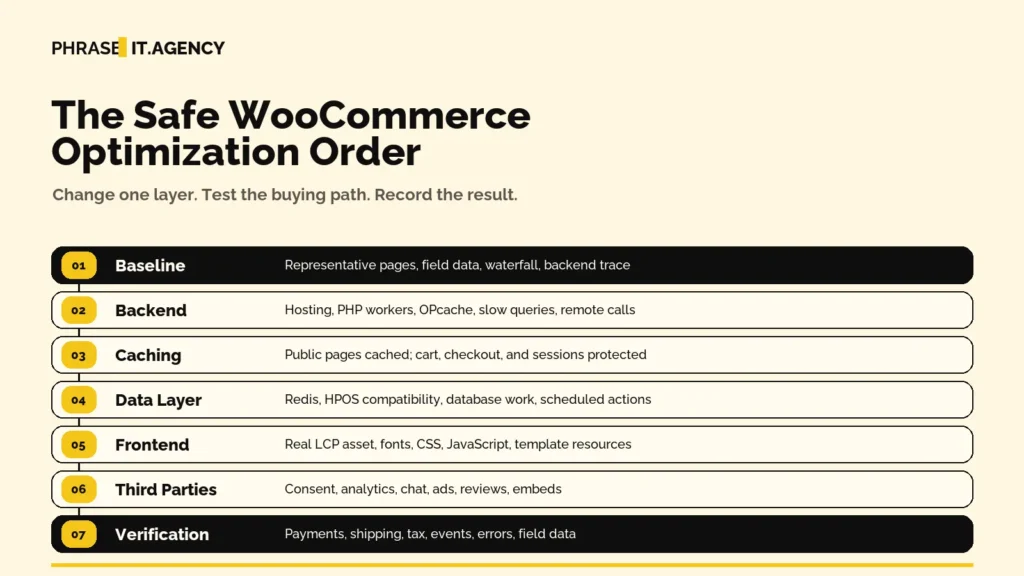
This sequence is intentionally less exciting than toggling every optimization switch. It also makes failures diagnosable. When a product gallery breaks or checkout events disappear, you know which change caused it.
How Do You Verify That a Faster Store Still Works?
Call the project successful only when representative pages improve under comparable tests and shoppers can still search, filter, select variations, add items, apply coupons, calculate shipping, pay, receive confirmations, and view their accounts. Verify prices, stock, customer data, consent, and analytics too. A higher score paired with lost orders is a regression.
- Compare the same URLs, device profiles, test locations, and cache states against the baseline.
- Confirm public pages receive expected cache headers while customer-specific requests bypass full-page cache.
- Check the browser console and network panel for new errors, failed requests, and blocked dependencies.
- Complete test purchases through every important payment, shipping, tax, subscription, and fulfillment path.
- Verify purchase, add-to-cart, begin-checkout, and consent events in analytics and tag-debugging tools.
- Monitor Core Web Vitals field data, server errors, orders, failed jobs, and support reports after launch.
A logical store structure also supports performance and discovery. If categories, filters, and URLs are generating unnecessary pages or expensive templates, address that through a broader ecommerce site structure plan instead of treating speed as an isolated plugin project.
Fix the Bottleneck, Not the Score
WooCommerce speed optimization works when you find the slowest meaningful part of the buying path, fix it safely, and verify the commercial outcome. Start with evidence, separate public cacheable pages from dynamic customer requests, and keep rollback and regression testing inside the work—not as an afterthought.
Your next question should not be “Which setting can I switch on?” It should be “Which request or interaction is costing shoppers time, and what proof will show that the fix worked?”
If your store is slow and you need a prioritized plan rather than another generic checklist, Phrase It can audit the templates, server, Core Web Vitals, and ecommerce path that matter most.
Book a strategy callFrequently Asked Questions About WooCommerce Speed Optimization
Why Is My WooCommerce Site So Slow?
WooCommerce may feel slow because several layers stack together: limited hosting resources, slow PHP or database queries, uncached dynamic requests, oversized images, heavy themes, expensive plugins, third-party scripts, and failed background jobs. Test representative templates and trace the slow request before deciding which layer to change.
What Is the Best Plugin for WooCommerce Speed Optimization?
There is no universal best plugin. LiteSpeed Cache is most compelling when the origin runs LiteSpeed and can use its server-level cache. WP Rocket and FlyingPress fit many other stacks. Choose one primary optimization layer based on hosting, measured bottlenecks, required features, and reliable WooCommerce exclusions.
Should I Cache WooCommerce Product Pages?
Yes, public product pages should usually use full-page cache unless they contain customer-specific or location-specific content that cannot be handled safely. Cart, checkout, My Account, order endpoints, logged-in sessions, and personalized requests should bypass full-page cache. Always verify stock, pricing, variations, and add-to-cart behavior after configuration.
Does Redis Make WooCommerce Faster?
Redis can reduce repeated database work on dynamic requests, which makes it useful for stores with uncached pages, logged-in customers, or database-heavy features. It will not fix every bottleneck. Confirm the server service and WordPress object-cache connection are active, then compare query time and response time before and after.
How Do I Speed Up WooCommerce Checkout?
Trace checkout as an uncached application request. Check PHP workers, database queries, object caching, payment scripts, shipping and tax APIs, address validation, subscription logic, and unnecessary checkout extensions. Update WooCommerce before custom work where appropriate, then test every payment, shipping, tax, email, webhook, and analytics path after each change.
Should I Disable WooCommerce Cart Fragments?
Disable or restrict cart fragments only after you understand how the mini-cart and theme use them. Removing the AJAX request can reduce work on pages that do not need live cart state, but a careless change can show the wrong cart count. Test cached navigation, add-to-cart actions, and customer sessions before release.
Quick Speed & Performance Troubleshooting
| Problem signal | Most likely cause | First place to investigate |
|---|---|---|
| Slow first server response | Weak hosting, uncached request, slow PHP, database queries | WebPageTest TTFB, Query Monitor, host APM, Redis |
| Slow product-page LCP | Large gallery image, lazy-loaded hero, CSS or JS render delay | PageSpeed Insights LCP element and sub-parts |
| Poor INP | Heavy variation scripts, filters, page builder, analytics, chat | Chrome Performance panel and long tasks |
| High CLS | Missing image dimensions, banners, fonts, dynamic notices | PageSpeed Insights diagnostics and DevTools |
| Fast public pages but slow checkout | Checkout is dynamic and uncached; gateways or database are slow | New Relic/APM, payment scripts, database, PHP workers |
| Admin and orders slow | Large order/postmeta tables, Action Scheduler backlog | HPOS, Scheduled Actions, database queries |
WP Rocket Recommended Baseline
| Area | Recommended starting setting | What to watch |
|---|---|---|
| Mobile cache | Enable caching for mobile devices | Use a separate mobile cache only if the site sends different HTML by device. |
| CSS minification | Turn on after a staging test | Check product galleries, variation forms, filters, and checkout. |
| Remove unused CSS | Test on staging first | Exclude styles needed after interaction if buttons, filters, or forms break. |
| JavaScript minification | Turn on after testing | Do not combine blindly. HTTP/2 and HTTP/3 already reduce the need for combining files. |
| Deferred JavaScript | Turn on after testing | Exclude scripts that need to run immediately. |
| Delayed JavaScript | Use for non-critical third-party scripts | Test add-to-cart, variation selection, consent banners, analytics, and payments. |
| LazyLoad | Use for below-the-fold media | Exclude the true LCP image and above-the-fold product images. |
| Preloading | Turn on | Warm important cache after clearing it. |
| Never Cache URLs | Review dynamic WooCommerce endpoints | WP Rocket handles standard WooCommerce pages, but custom flows need review. |
LiteSpeed Cache Recommended Baseline
Use LiteSpeed Cache’s page cache only when the origin uses LiteSpeed Web Server or OpenLiteSpeed. Its optimization features can work elsewhere, but the server-level caching advantage depends on LiteSpeed.
| Area | Recommended starting setting | What to watch |
|---|---|---|
| Page cache | Enable cache | Confirm the server supports LiteSpeed page caching. |
| Mobile cache | Keep off for responsive sites | Enable only if mobile receives different HTML. |
| ESI | Test only if dynamic widgets need it | Complex ESI setups need careful verification. |
| CSS minification | Turn on after testing | Do not enable every CSS option at once. |
| Remove unused CSS | Test on staging first | Verify filters, variation forms, and checkout. |
| JavaScript minification | Turn on after testing | Check console errors and the full purchase flow. |
| Deferred or delayed JavaScript | Start with deferred, then test delayed | Add exclusions for scripts needed before interaction. |
| LazyLoad images | Turn on | Exclude the LCP image. |
| Cache exclusions | Review custom cart, checkout, account, and personalized routes | Never assume a custom endpoint is already excluded. |
FlyingPress Recommended Baseline
| Area | Recommended starting setting | What to watch |
|---|---|---|
| Cache | Enable page cache and cache preloading | Verify dynamic exclusions and customer sessions. |
| CSS | Minify CSS and test Remove Unused CSS | Check interactive components on every store template. |
| JavaScript | Defer non-critical JavaScript and delay third-party scripts | Exclude checkout, payments, variations, add-to-cart, and consent dependencies as needed. |
| Images | Lazy-load below-fold images and preload the critical image | Do not lazy-load the LCP image. |
| Fonts | Preload only critical local fonts | Too many preloads compete with the LCP resource. |
Choose one primary caching and asset optimization tool. Running WP Rocket, LiteSpeed Cache page optimization, Autoptimize, and another minifier together creates overlapping rules, duplicate optimization, and harder debugging.
This is why WordPress speed work should start with template-level diagnosis, not a single homepage score. A proper WordPress page speed optimization process looks at public pages, product pages, cart, checkout, scripts, cache rules, and the full buying path before changing settings.